|
|
| |
..... |
|
|
iRecord
Pro
Desktop |
|
iRecord Pro Desktop |
|
iRecord Pro Desktop is a powerful PC and Mac (Intel
based) tool
for iRecord Pro. It enables iRecord Pro to be connected to a PC and
Macintosh through its USB device port and manages the various operations
such as recording analog AV contents to PC/Mac hard drive, configuring recording parameters for standalone operation and firmware
upgradation. |
|
|
| |
|
|
|
|
|
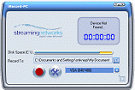
iRecord-PC utility enables direct
recording to a PC/Mac hard drive via USB device port.
Step 1 - Connect to an analog AV source.
Step 2 -
Power on iRecord Pro.
Step 3 -
Connect PC, Laptop or Macintosh.
Step 4 -
Launch iRecord-PC.
- Recording
formats and resolutions can be selected.
- Pause
recording.
- FLAC
lossless audio recording.
- Various
recording options such as scheduled recording & recording
duration time (open for iPods only), album/artist name and recording folder can be
set.
- User can
watch/listen to the video/audio being recorded through preview
function.
- Recording
can be simultaneously watched from a remote PC through live
streaming using QuickTime®.
Please read the iRecord Desktop User Manual
for further details and other options available. |
|
|
|
|
|
|
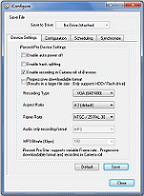
iConfigure enables scheduled recordings for
iPods, customization of various settings to make iRecord pro operate
the way you want.
Configuration:
- Set video
recording format and resolution.
- FLAC
lossless audio recording.
- For Apple iPods
you can have iRecord Pro automatically update the iTunes database
when new media is added to the iPod.
- You can specify
a maximum recording duration after which the iRecord Pro will
automatically stop recording (for iPods only).
- The file split
duration breaks long recordings into multiple files.
- Select between
MP3 and AAC audio recording formats.
- Set the bit rate
for audio recordings.
- Set the number
of seconds of silence that will be used to determine the start
of a new track for audio recording.
Scheduling for iPods:
-
Specify the
name, date, time and duration for one or more recordings.
-
At the scheduled
time iRecord Pro will record the audio/video signal onto your
iPod. You can review and amend the schedule.
Synchronize:
-
Enables you to synchronize audio
& video files from your iPod, or other USB device, with iTunes
on your Windows or Mac
computer. You can then make backups of your media, or transfer
it to another device. Note that synchronization works only for
iRecord recorded files.
Please read the iRecord Pro Desktop User Manual
for further details and other options available. |
|
|
|
The iRecord Pro
platform is subject to a continuous improvement plan where new
functions, features and support for new devices are made
available to existing users through software upgrades.
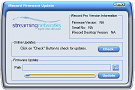
iRecord Desktop
simplifies the process of locating, downloading and installing
updates to iRecord Desktop and the iRecord firmware.
Further details are provided in the iRecord
Desktop User Manual. |
|
|
| |
| |
| |
| |
| |
| |
| |
| |
| |
| |
| |
| |
|
| |
iRecord Demo |
| |
|
| |
| |
| |
| |
| |
| |
| |
| |
|
| |
|
| |
Get
In Touch |
| |
|
| |
| |
| |
| |
| |
| |
| |
| |
| |
| |
| |
| |
|
|
|
|
|


.png)
.png)
